Education
5 min read

Best Practice templates: a clinic-wide Bp Premier guide

Published on
October 22, 2026
One approved document template in front of older versions
Contributors
Subscribe to our newsletter
Read about our privacy policy.
Thank you! Your submission has been received!
Oops! Something went wrong while submitting the form.

A useful Bp Premier template needs to work for the clinician using it and the patient whose information it carries. Across an Australian practice, that means more than importing a file: staff need to find the approved version, understand its prompts and know who maintains it.

For practice managers, GPs and template administrators, a clear workflow connects trusted sources, safe customisation and consistent clinic-wide use.

Choose the right Bp Premier feature

“Best Practice templates” can mean several different things. Start with the task you need to support.

FeatureUse it forImportant boundary
Word Processor document templateReusable letters and documents with text, formatting and patient-data fieldsSupplied templates and practice-created custom templates appear in the template picker.
System templateA printout generated from a particular Bp Premier functionCustomising one changes the version used across the practice.
AutofillA short text passage inserted with a shortcutIt is separate from a complete document template.

The creation and import steps here concern Word Processor document templates. System templates need their separate editing route, covered below.

Our Bp Premier integration supports a different part of documentation: clinicians can review Lyrebird draft consult notes and save them to Today’s Notes. Choosing a Lyrebird note type does not create or update a Bp Word Processor template. Keep responsibility for each library clear.

Find a trusted starting template

Start inside Bp Premier. Open Utilities > Word processor, then Template > Use Template. Choose Supplied for Best Practice Software’s templates or Custom for practice-created versions.

The template picker initially shows templates relevant to the practice’s state; Include all states expands the list.

For external files, favour the organisation responsible for the document or receiving the referral. A hospital’s current referral form or a local Primary Health Network (PHN) resource is a stronger starting point than an unattributed file passed between practices.

For example, Brisbane North PHN distributes Metro North referral templates in Bp-compatible rich text format (RTF) for named local services. These files cannot be used by Medical Officers employed within Metro North Hospital and Health Service for referrals to its hospital outpatient services.

The Heart Foundation’s downloadable toolkit resources distinguish Best Practice RTF templates from PDF and MedicalDirector versions. The organisation, purpose and file format all matter.

Before adopting a file, record:

  • Provenance: the source organisation, original page, download date and permission to adapt or share it.
  • Purpose: the intended patient group, recipient, jurisdiction and clinical workflow.
  • Currency: the source version or issue date and the clinical or administrative requirements it relies on.
  • Local changes: what your practice will alter and who can approve those alterations.

A familiar logo or successful import does not establish clinical currency. Treat community and forum files as candidates for local approval. Our clinical template library provides note and letter structures for Lyrebird; it is separate from Bp Premier’s importable document templates.

Create or import a Word Processor template

These menu paths follow Bp Premier’s Spectra help. Your Bp administrator or support team can resolve local release differences.

Create a new template

The author needs the Word processor templates permission set to Add/Edit/Delete to create or edit templates.

  1. Open Utilities > Word processor, or press F4.
  2. Select Template > New Template.
  3. Add the fixed wording and layout.
  4. Position the cursor and double-click a field in the left-hand list to insert patient or practice data. Typing a field name between angle brackets does not create a working field.
  5. Select File > Save As, enter a clear name and save.

Available to all users makes the template accessible across the practice. Reserve that step for the approved release.

Import an existing template

Bp Premier imports RTF files as Word Processor templates. .doc, .docx, .dotx and PDF files cannot be imported directly as Bp Word Processor templates.

  1. Save the RTF file somewhere accessible from the Bp workstation.
  2. Open Utilities > Word processor.
  3. Select Templates > Import Template, locate the file and open it.
  4. Make the required local changes and save it under the practice’s naming convention.
  5. Enable Available to all users only when the release is approved.

Fields may be retained when importing from another Bp Premier site or Medical Director 2/3 only if the source software supports TX Controls, which preserve embedded data fields. Otherwise, fields are unlikely to survive import and should be recreated inside Bp.

Keep an existing Bp template out of Microsoft Word and other external editors, which can remove or corrupt its fields.

Customise the wording, fields and layout safely

We recommend treating every shared-template change as a small clinical-document release. The controls below are practice guidance, separate from Bp’s sharing settings.

Preserve an approved baseline

Keep the current approved template available while a replacement is prepared. Give the candidate a distinct name and record its source and changes outside Bp.

For an existing custom template, open Templates > Edit template > Custom. A supplied template must be saved under a different name rather than overwritten. Use File > Save As for a separately named candidate.

Bp also supports Templates > Export Template, one template at a time. Retain an export where available, alongside the register and change record. An export alone is not a complete recovery plan: document how the practice will return to the approved version if the replacement fails.

Separate record data from encounter-specific answers

Use database fields for information held in the patient record. Use custom prompt fields for information the author must enter, such as the referral question or an agreed follow-up arrangement.

Custom fields can have defaults and can retain or reuse a patient’s previous answer. Avoid default positive findings, consent statements or completed actions. A previously saved response needs fresh clinical review when the document is used again.

Keep headings and prompts specific. “Reason for referral” gives the author a task; a prewritten diagnosis or normal examination can insert an unsupported assertion. Include only the record information needed for the document’s purpose.

Set clear release criteria

Use the clinic’s approved training workflow with non-live data. Do not create fictitious clinical entries in real patient records to exercise a template.

A candidate is ready for clinical approval when the owner has recorded satisfactory results for each of these cases:

AreaRequired result
Identity and addresseeThe intended patient, author, recipient and practice details appear in the right places.
Record fieldsPopulated values are correct; missing values do not become false clinical statements.
PromptsAnswers appear under the intended heading, and unresolved placeholders remain obvious.
Long contentLong names, medication lists and histories remain readable without clipped text.
OutputPage breaks, letterhead and printed output retain the required information.
SavingThe completed document is saved against the intended patient with appropriate document details.

The clinician still reviews, edits and signs off each patient-specific document. A template’s approval covers its reusable structure and wording, not the accuracy of every document created from it.

Treat system-template changes separately

System templates use Utilities > Word processor > Templates > Customise system templates. Saving a customisation replaces the default output used by that function for other practice users. Replacing an existing customisation triggers a confirmation prompt. These are practice-wide system changes, so agree on the recovery route with Bp support before replacement.

Keep clinical care-plan requirements and billing decisions with the responsible clinician. Changing a printout does not establish that a service meets those requirements.

Give every shared template an owner and version

The Available to all users setting distributes access. Your practice still needs a record of who approved the content, what changed and which version staff should use.

Use one clinic-controlled register. A spreadsheet is sufficient if staff can find it and only authorised people can change the approval record.

Register fieldWhat to record
Template identifierA stable identifier and the exact name staff see in Bp.
Purpose and scopeIntended workflow, recipient, user group and exclusions.
SourceOriginal organisation, source URL and source version.
OwnerNamed person responsible for maintenance, plus a deputy.
Clinical approverClinician responsible for approving clinical wording and prompts.
Practice versionLocal version number, effective date and change summary.
Review triggerNext review date and events requiring an earlier review.
Release statusCandidate, approved or retired; include the replacement and recovery location.

For example, a practice might name a candidate REF-General-v1.1-CANDIDATE and release it as REF-General-v1.1. Keep the same identifier in the register. This is a naming convention your clinic controls, rather than a Bp approval or version-history feature.

Assign responsibilities explicitly: the template administrator maintains fields and layout, the clinical approver owns clinical content, and the practice manager coordinates availability and staff communication. One person may hold several roles, but every role needs a named owner.

Roll out one approved version across the clinic

Start with one frequently used document. A controlled replacement is easier to teach than a large library change.
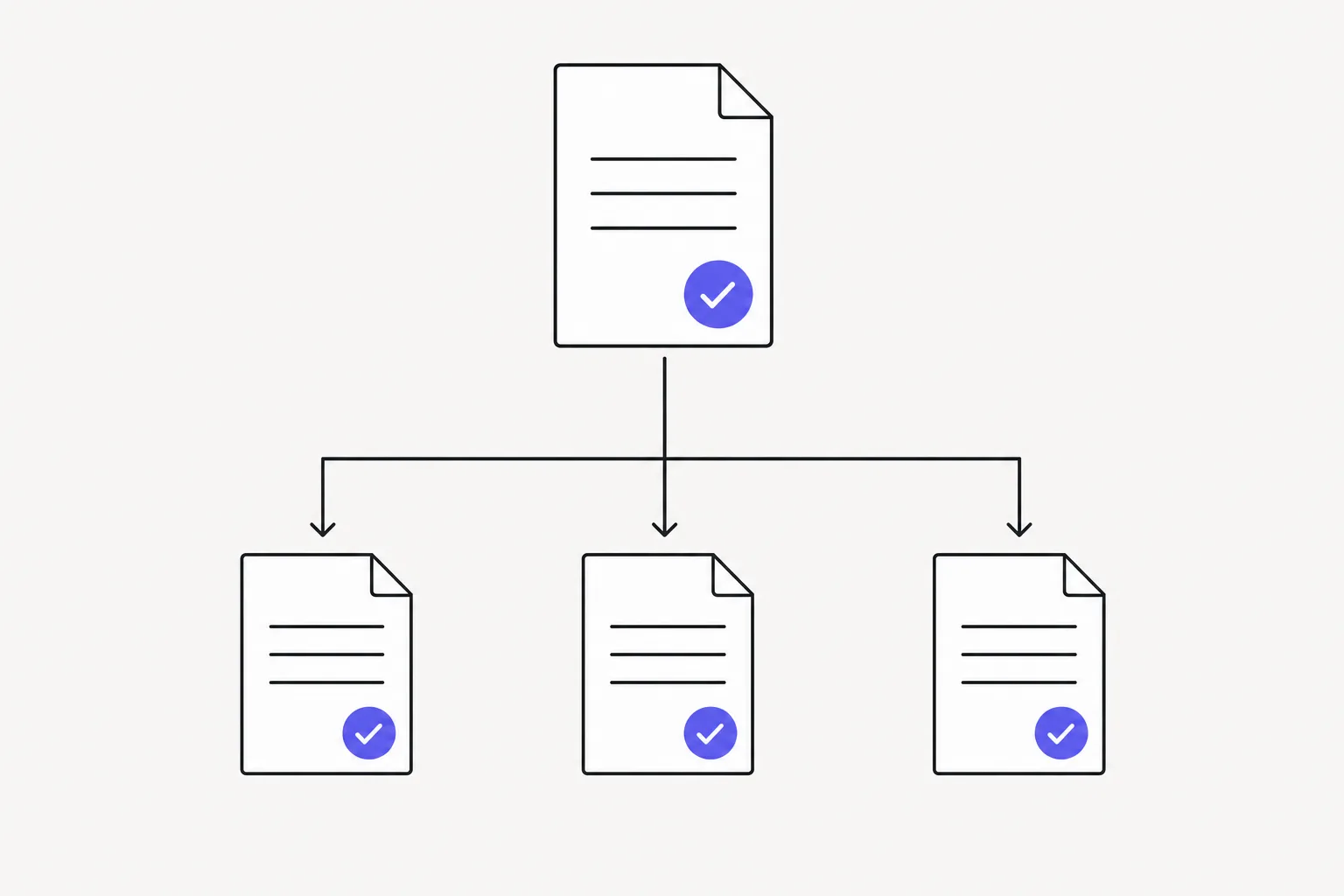
One approved template used consistently by three clinic teams

  1. Approve the candidate. Record the clinical approver, release criteria results and effective date.
  2. Make the release available. Use the agreed name and sharing setting. For multiple Bp installations, record the release separately at each site.
  3. Tell staff exactly what changed. Give the template name, intended use, new prompts, effective date and person to contact about a problem.
  4. Align shortcuts and training. Bp supports template Favourites. Include the replacement in staff instructions so a familiar shortcut does not keep pointing people towards an older choice.
  5. Retire the previous version. Remove it from routine selection through the practice’s approved process, while retaining its baseline and change history outside the active library.
  6. Review early use. Ask clinicians and administration staff to report missing fields, confusing prompts or output problems to the owner.

Avoid names such as “new”, “latest” or “final final”. A locum or new receptionist should be able to identify the approved template without knowing the history of its creation.

Maintain custom versions after updates

Bp’s supplied templates change through Data Updates. The Data Update release notes identify template additions and amendments, including state coverage.

A custom copy creates an ongoing maintenance responsibility. Fixes to a supplied template may require adjusting or recreating the custom version. A field-population error can require deletion and reinsertion of the affected field from Bp’s native field list.

Give the owner event-based review triggers alongside a scheduled date:

  • A source organisation replaces its form or changes referral requirements.
  • A Bp update changes a supplied template on which your custom copy depends.
  • Clinical guidance, administrative requirements or the practice workflow changes.
  • A user reports an omission, incorrect populated value or formatting failure.

If a problem could affect patient care or send incorrect information, withdraw the template from routine use through the local process and direct staff to the approved alternative. Correct the candidate and repeat the approval and rollout steps before reinstating it.

Use Autofills for short, encounter-specific text

Bp Premier’s Autofills insert text when you type a shortcut and press Enter or Space. Predefined Autofills are available in Today’s Notes only. Custom Autofill entries can be created in Today’s Notes or the Word Processor; Word Processor Autofills can include database data elements.

To add one, choose Autofill > Add in Today’s Notes or Insert > Autofill > Add in the Word Processor. Use a shortcut unlikely to occur in ordinary prose, such as *followup. A caret, ^, marks a place for encounter-specific information; Shift+F5 moves between these stop-points. Available to all users shares the entry.

A short prompt such as Follow-up arrangement: ^ leaves the clinical answer open. Avoid expansions that assert normal findings, consent or completed counselling regardless of the encounter. Give shared Autofills the same owner, approval and retirement process as document templates.

Keep the reviewed document at the centre

A standard library should make the right starting point easy to find while leaving the clinician in control of the patient-specific content.

If you use Lyrebird alongside Bp Premier, keep that same review boundary. General generated documents need to be copied and pasted into a Bp Word Processor document or template.

Our supported Bp Referral Letters workflow, once configured with the clinic’s letterhead, can save reviewed letters directly to Correspondence Out. These are distinct routes; importing a Word Processor template does not configure every Lyrebird document workflow.

For help fitting reviewed draft notes and supported letter workflows into your clinic’s Bp process:

Contact us

More Resources
Continue reading
Posts
The dangers of Copy Paste Scribes
Read More
Posts
How to use an AI medical scribe
Read More
Posts
December Product Updates
Read More
Education
Pre-consultation questionnaire: design and clinical review
Read More
Medical Summary Template for Australian Clinicians
Read More
Education
PBS Prescribing: A Clinician's Guide
Read More
Article
5 min read

Best Practice templates: a clinic-wide Bp Premier guide

Published on
October 22, 2026
One approved document template in front of older versions
Contributors
Subscribe to our newsletter
Read about our privacy policy.
Thank you! Your submission has been received!
Oops! Something went wrong while submitting the form.

A useful Bp Premier template needs to work for the clinician using it and the patient whose information it carries. Across an Australian practice, that means more than importing a file: staff need to find the approved version, understand its prompts and know who maintains it.

For practice managers, GPs and template administrators, a clear workflow connects trusted sources, safe customisation and consistent clinic-wide use.

Choose the right Bp Premier feature

“Best Practice templates” can mean several different things. Start with the task you need to support.

FeatureUse it forImportant boundary
Word Processor document templateReusable letters and documents with text, formatting and patient-data fieldsSupplied templates and practice-created custom templates appear in the template picker.
System templateA printout generated from a particular Bp Premier functionCustomising one changes the version used across the practice.
AutofillA short text passage inserted with a shortcutIt is separate from a complete document template.

The creation and import steps here concern Word Processor document templates. System templates need their separate editing route, covered below.

Our Bp Premier integration supports a different part of documentation: clinicians can review Lyrebird draft consult notes and save them to Today’s Notes. Choosing a Lyrebird note type does not create or update a Bp Word Processor template. Keep responsibility for each library clear.

Find a trusted starting template

Start inside Bp Premier. Open Utilities > Word processor, then Template > Use Template. Choose Supplied for Best Practice Software’s templates or Custom for practice-created versions.

The template picker initially shows templates relevant to the practice’s state; Include all states expands the list.

For external files, favour the organisation responsible for the document or receiving the referral. A hospital’s current referral form or a local Primary Health Network (PHN) resource is a stronger starting point than an unattributed file passed between practices.

For example, Brisbane North PHN distributes Metro North referral templates in Bp-compatible rich text format (RTF) for named local services. These files cannot be used by Medical Officers employed within Metro North Hospital and Health Service for referrals to its hospital outpatient services.

The Heart Foundation’s downloadable toolkit resources distinguish Best Practice RTF templates from PDF and MedicalDirector versions. The organisation, purpose and file format all matter.

Before adopting a file, record:

  • Provenance: the source organisation, original page, download date and permission to adapt or share it.
  • Purpose: the intended patient group, recipient, jurisdiction and clinical workflow.
  • Currency: the source version or issue date and the clinical or administrative requirements it relies on.
  • Local changes: what your practice will alter and who can approve those alterations.

A familiar logo or successful import does not establish clinical currency. Treat community and forum files as candidates for local approval. Our clinical template library provides note and letter structures for Lyrebird; it is separate from Bp Premier’s importable document templates.

Create or import a Word Processor template

These menu paths follow Bp Premier’s Spectra help. Your Bp administrator or support team can resolve local release differences.

Create a new template

The author needs the Word processor templates permission set to Add/Edit/Delete to create or edit templates.

  1. Open Utilities > Word processor, or press F4.
  2. Select Template > New Template.
  3. Add the fixed wording and layout.
  4. Position the cursor and double-click a field in the left-hand list to insert patient or practice data. Typing a field name between angle brackets does not create a working field.
  5. Select File > Save As, enter a clear name and save.

Available to all users makes the template accessible across the practice. Reserve that step for the approved release.

Import an existing template

Bp Premier imports RTF files as Word Processor templates. .doc, .docx, .dotx and PDF files cannot be imported directly as Bp Word Processor templates.

  1. Save the RTF file somewhere accessible from the Bp workstation.
  2. Open Utilities > Word processor.
  3. Select Templates > Import Template, locate the file and open it.
  4. Make the required local changes and save it under the practice’s naming convention.
  5. Enable Available to all users only when the release is approved.

Fields may be retained when importing from another Bp Premier site or Medical Director 2/3 only if the source software supports TX Controls, which preserve embedded data fields. Otherwise, fields are unlikely to survive import and should be recreated inside Bp.

Keep an existing Bp template out of Microsoft Word and other external editors, which can remove or corrupt its fields.

Customise the wording, fields and layout safely

We recommend treating every shared-template change as a small clinical-document release. The controls below are practice guidance, separate from Bp’s sharing settings.

Preserve an approved baseline

Keep the current approved template available while a replacement is prepared. Give the candidate a distinct name and record its source and changes outside Bp.

For an existing custom template, open Templates > Edit template > Custom. A supplied template must be saved under a different name rather than overwritten. Use File > Save As for a separately named candidate.

Bp also supports Templates > Export Template, one template at a time. Retain an export where available, alongside the register and change record. An export alone is not a complete recovery plan: document how the practice will return to the approved version if the replacement fails.

Separate record data from encounter-specific answers

Use database fields for information held in the patient record. Use custom prompt fields for information the author must enter, such as the referral question or an agreed follow-up arrangement.

Custom fields can have defaults and can retain or reuse a patient’s previous answer. Avoid default positive findings, consent statements or completed actions. A previously saved response needs fresh clinical review when the document is used again.

Keep headings and prompts specific. “Reason for referral” gives the author a task; a prewritten diagnosis or normal examination can insert an unsupported assertion. Include only the record information needed for the document’s purpose.

Set clear release criteria

Use the clinic’s approved training workflow with non-live data. Do not create fictitious clinical entries in real patient records to exercise a template.

A candidate is ready for clinical approval when the owner has recorded satisfactory results for each of these cases:

AreaRequired result
Identity and addresseeThe intended patient, author, recipient and practice details appear in the right places.
Record fieldsPopulated values are correct; missing values do not become false clinical statements.
PromptsAnswers appear under the intended heading, and unresolved placeholders remain obvious.
Long contentLong names, medication lists and histories remain readable without clipped text.
OutputPage breaks, letterhead and printed output retain the required information.
SavingThe completed document is saved against the intended patient with appropriate document details.

The clinician still reviews, edits and signs off each patient-specific document. A template’s approval covers its reusable structure and wording, not the accuracy of every document created from it.

Treat system-template changes separately

System templates use Utilities > Word processor > Templates > Customise system templates. Saving a customisation replaces the default output used by that function for other practice users. Replacing an existing customisation triggers a confirmation prompt. These are practice-wide system changes, so agree on the recovery route with Bp support before replacement.

Keep clinical care-plan requirements and billing decisions with the responsible clinician. Changing a printout does not establish that a service meets those requirements.

Give every shared template an owner and version

The Available to all users setting distributes access. Your practice still needs a record of who approved the content, what changed and which version staff should use.

Use one clinic-controlled register. A spreadsheet is sufficient if staff can find it and only authorised people can change the approval record.

Register fieldWhat to record
Template identifierA stable identifier and the exact name staff see in Bp.
Purpose and scopeIntended workflow, recipient, user group and exclusions.
SourceOriginal organisation, source URL and source version.
OwnerNamed person responsible for maintenance, plus a deputy.
Clinical approverClinician responsible for approving clinical wording and prompts.
Practice versionLocal version number, effective date and change summary.
Review triggerNext review date and events requiring an earlier review.
Release statusCandidate, approved or retired; include the replacement and recovery location.

For example, a practice might name a candidate REF-General-v1.1-CANDIDATE and release it as REF-General-v1.1. Keep the same identifier in the register. This is a naming convention your clinic controls, rather than a Bp approval or version-history feature.

Assign responsibilities explicitly: the template administrator maintains fields and layout, the clinical approver owns clinical content, and the practice manager coordinates availability and staff communication. One person may hold several roles, but every role needs a named owner.

Roll out one approved version across the clinic

Start with one frequently used document. A controlled replacement is easier to teach than a large library change.

One approved template used consistently by three clinic teams

  1. Approve the candidate. Record the clinical approver, release criteria results and effective date.
  2. Make the release available. Use the agreed name and sharing setting. For multiple Bp installations, record the release separately at each site.
  3. Tell staff exactly what changed. Give the template name, intended use, new prompts, effective date and person to contact about a problem.
  4. Align shortcuts and training. Bp supports template Favourites. Include the replacement in staff instructions so a familiar shortcut does not keep pointing people towards an older choice.
  5. Retire the previous version. Remove it from routine selection through the practice’s approved process, while retaining its baseline and change history outside the active library.
  6. Review early use. Ask clinicians and administration staff to report missing fields, confusing prompts or output problems to the owner.

Avoid names such as “new”, “latest” or “final final”. A locum or new receptionist should be able to identify the approved template without knowing the history of its creation.

Maintain custom versions after updates

Bp’s supplied templates change through Data Updates. The Data Update release notes identify template additions and amendments, including state coverage.

A custom copy creates an ongoing maintenance responsibility. Fixes to a supplied template may require adjusting or recreating the custom version. A field-population error can require deletion and reinsertion of the affected field from Bp’s native field list.

Give the owner event-based review triggers alongside a scheduled date:

  • A source organisation replaces its form or changes referral requirements.
  • A Bp update changes a supplied template on which your custom copy depends.
  • Clinical guidance, administrative requirements or the practice workflow changes.
  • A user reports an omission, incorrect populated value or formatting failure.

If a problem could affect patient care or send incorrect information, withdraw the template from routine use through the local process and direct staff to the approved alternative. Correct the candidate and repeat the approval and rollout steps before reinstating it.

Use Autofills for short, encounter-specific text

Bp Premier’s Autofills insert text when you type a shortcut and press Enter or Space. Predefined Autofills are available in Today’s Notes only. Custom Autofill entries can be created in Today’s Notes or the Word Processor; Word Processor Autofills can include database data elements.

To add one, choose Autofill > Add in Today’s Notes or Insert > Autofill > Add in the Word Processor. Use a shortcut unlikely to occur in ordinary prose, such as *followup. A caret, ^, marks a place for encounter-specific information; Shift+F5 moves between these stop-points. Available to all users shares the entry.

A short prompt such as Follow-up arrangement: ^ leaves the clinical answer open. Avoid expansions that assert normal findings, consent or completed counselling regardless of the encounter. Give shared Autofills the same owner, approval and retirement process as document templates.

Keep the reviewed document at the centre

A standard library should make the right starting point easy to find while leaving the clinician in control of the patient-specific content.

If you use Lyrebird alongside Bp Premier, keep that same review boundary. General generated documents need to be copied and pasted into a Bp Word Processor document or template.

Our supported Bp Referral Letters workflow, once configured with the clinic’s letterhead, can save reviewed letters directly to Correspondence Out. These are distinct routes; importing a Word Processor template does not configure every Lyrebird document workflow.

For help fitting reviewed draft notes and supported letter workflows into your clinic’s Bp process:

Contact us

Keep reading

All posts
Questions about compliance?