Education
5 min read

Best microphone for an AI scribe: a clinical setup guide

Published on
October 23, 2026
Two voice waveforms directed into a shared tabletop microphone on a violet background
Contributors
Lyrebird Health
Subscribe to our newsletter
Read about our privacy policy.
Thank you! Your submission has been received!
Oops! Something went wrong while submitting the form.

A microphone for an AI scribe needs to capture the patient as clearly as the clinician. A setup that sounds good for solo dictation can miss a quiet voice across the desk or a patient speaking through a telehealth call. For Australian clinicians, choosing the right equipment starts with the consult: who speaks, where they sit and how their voice reaches the scribe.

Choose for conversation capture or solo dictation

An ambient AI scribe captures a conversation. Dictation captures your spoken summary. In our clinical AI platform, Lyrebird, both can produce draft clinical notes for your review, but they ask different things of the microphone.

For ambient capture, coverage of all participants matters. An omnidirectional microphone picks up sound from every direction. A cardioid microphone favours sound from the front and reduces pickup from the rear.

That can suit solo dictation, while a patient sitting behind it may be harder to hear. Neither pattern removes room noise or guarantees equal clarity at every distance.

Our recommendation for a fixed consulting room

For an in-person Lyrebird consult with people seated around a desk, we recommend the Audio-Technica ATR4697-USB, a small omnidirectional tabletop microphone. Its low profile leaves space for the conversation, and its wired connection avoids a battery or wireless pairing step.

The Audio-Technica tabletop microphone has a 1.5 m cable with a USB-C connector and an included USB-A adaptor. The Australian listed price is A$69.95 including GST.

This recommendation is for shared room capture. Room size, noise and seating still determine coverage; a microphone alone cannot guarantee note accuracy. If the model is unavailable, the relevant category is a wired omnidirectional USB tabletop microphone.

Match the equipment to your consult workflow

Workflow Suitable starting setup Main advantage Main limitation
Quiet, seated consult with a laptop or mobile device nearby Existing built-in microphone No extra equipment or connection Its position is tied to the device; a screen, pocket or distant workstation can leave one voice unclear
Regular in-person consult around a desk Wired omnidirectional USB tabletop microphone Can sit between speakers independently of the computer Captures unwanted room sound as well as speech
Patient, clinician and carer or interpreter around a larger table Conference microphone or microphone array designed for shared coverage Designed to cover several seating positions Coverage and voice-processing behaviour differ by model; room acoustics still matter
Clinician dictating alone after a consult Wired headset, lapel or directional desktop microphone Keeps the microphone near the clinician Close capture of one person is a poor default for an ambient conversation
Video telehealth with headphones Headset microphone plus supported call-audio sharing Separate paths for your voice and the remote patient's voice A headset microphone alone cannot capture audio heard only through your headphones
Home visit or changing rooms Mobile device placed openly between participants Portable, with little equipment to carry Movement, screen locking and interruptions can disrupt capture

A microphone array uses several microphone elements and processing to shape its coverage. An advertised room radius describes a device capability under particular conditions, not a promise that a softly spoken patient will be equally clear everywhere within it.

When the built-in microphone is enough

An external microphone is optional when the existing device captures every participant clearly in the intended positions. Most recent iPhone and Android built-in microphones work well for standard Lyrebird consults.

Keep the phone on the table between participants, with its microphone openings unobstructed. A pocket or bag muffles the conversation. Keep the screen awake, as locking it can pause the microphone on some devices, and incoming calls can interrupt capture.

For a laptop, keep the lid open and the microphone area clear. An external microphone becomes useful when it lets you move capture closer to the patient without moving the screen or keyboard. That placement benefit is more useful than buying a microphone simply because it is marketed for AI.

Improve the room before increasing sensitivity

Distance changes the balance between a voice and the room around it. Moving a microphone closer to the speaker increases direct sound relative to reflections.

In practice:

  • Close the consulting-room door where appropriate, so corridor conversations are less likely to enter the audio.
  • Move the microphone away from computer fans, printers and air-conditioning outlets. Keep necessary ventilation and clinical equipment operating.
  • Clear paper, bags and equipment from the path between the microphone and participants.
  • Keep the microphone away from keyboard taps and objects that knock against its cable or housing.
  • For a persistently echoing room, use facilities-approved acoustic treatment compatible with cleaning and infection-prevention requirements.

Turning up input gain, the microphone's recording level, also turns up the unwanted sound it receives. It cannot make a distant patient acoustically closer. Excessive levels can distort loud speech, so the aim is clear ordinary conversation without distortion.

Place the microphone for the quietest and furthest voice

For a shared desk, start with the omnidirectional microphone on a stable, clear tabletop between participants. Avoid leaving it beside your keyboard simply because the USB port is there. Bring it towards a quietly spoken patient where practical, while preserving coverage of the clinician.
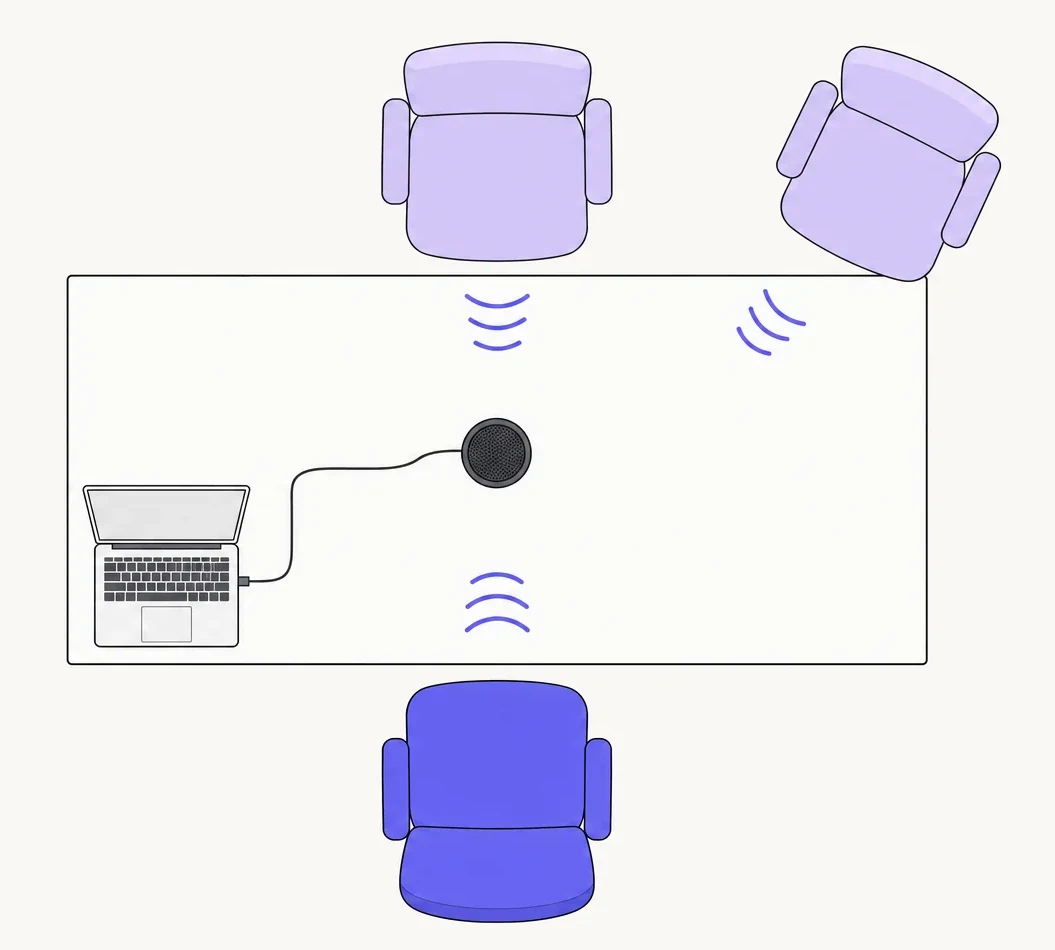
Shared tabletop microphone between three seats, with its cable connected to a laptop away from the microphone

A boundary microphone such as the ATR4697-USB is designed to sit on a surface. A directional desktop microphone needs its pickup side aimed towards the intended speaker. The visible top of a microphone is not always the speaking side.

There is no universal centimetre setting for a whole consult. The patient's chair, examination couch and clinician's workstation may create quite different speaking distances. Include those positions in the rehearsal before relying on one fixed location.

Multi-speaker consults need more than wider pickup

A microphone captures sound; it does not establish who a person is or whose history they are describing. At the start, introduce the participants and their roles naturally. Allow people to finish where possible, and clarify clinically important statements when voices overlap.

A carer saying “I stopped taking it” can be ambiguous even when every word is audible. Clarify whether the statement concerns the patient or the carer. Review attribution in the draft note, particularly symptoms, medicines, family history and the agreed plan.

A lapel microphone worn by the clinician stays near one voice as that person moves. It should not be assumed to capture a patient across the room equally well. For an ambient consult, preserve shared coverage or use another documentation method when the room cannot support it.

Give the intended microphone access at every layer

A working USB connection is only the first layer. The operating system must allow access, the browser must allow the site, and the scribe must receive the intended input.

  1. Connect and unmute the device. Seat the cable securely and release any physical mute switch.
  2. Select the system input. In Windows, open Settings → System → Sound → Input. On Mac, open System Settings → Sound → Input and select the microphone.
  3. Allow operating-system access. In Windows 11, open Settings → Privacy & security → Microphone and enable the relevant access controls, including “Let desktop apps access your microphone” for desktop browsers. Microsoft's microphone permission instructions distinguish desktop apps from Microsoft Store apps. On Mac, enable the browser under System Settings → Privacy & Security → Microphone, following Apple's microphone access instructions.
  4. Allow the scribe website. In Chrome, open Settings → Privacy and security → Site settings → Microphone. Select the intended input and allow the scribe site. Chrome microphone settings can also be controlled by the practice's administrator.
  5. Observe the scribe input. In Lyrebird, the audio-level indicator should respond to speech. A moving indicator shows incoming sound, not that every participant is intelligible.

Bp Premier's embedded Lyrebird window has its own microphone-access prompt. Permission in standalone Chrome does not establish permission inside that window. In a remote desktop setup, microphone redirection is another layer: the remote session needs access to audio from the local computer. Our microphone setup instructions cover these configurations.

Give telehealth audio its own route

Telehealth has two sources: your local microphone and the remote patient's call audio. Buying a more sensitive desk microphone does not solve a missing digital audio route.

Video consults with a headset

When a patient's voice plays only in headphones, your microphone does not receive that sound from the room. In Lyrebird's supported Chrome and Edge telehealth workflow, select “Telehealth consult”, choose the tab containing the call and enable “share audio”. This routes the call audio alongside your microphone input, allowing headset use.

Our telehealth setup instructions describe the browser flow. This does not mean that every desktop calling application shares audio in the same way. A two-person rehearsal needs both the local and remote voices to reach the scribe through the intended setup.

Phone consults on speaker

For a phone-on-speaker workflow, place the phone near the microphone in a private room so it can capture both sides. Keep playback loud enough for clear speech without distortion. Audio routed only into a telephone headset will not be available to a separate room microphone.

If a conferencing application takes exclusive microphone access, resolve that conflict in its settings before the consult. Avoid running two loudspeaker-and-microphone paths for the same call, which can create echo.

Run a short rehearsal with fictional information

Use an empty room and a colleague, with invented details rather than patient information, keeping the usual ventilation, seating, computer and call setup. A short rehearsal helps find setup problems. It cannot establish that future notes will be error-free.

  1. Use each speaking position. Take turns from the clinician's chair, patient chair and any examination-couch or carer position used during capture. Include ordinary and quiet speech, without asking anyone to shout.
  2. Include details that change meaning. Use a fictional name, a medicine and dose, a date, a number and a negative statement such as “I have not had a fever”. Add a correction such as “Tuesday, sorry, Thursday”.
  3. Include normal room activity. Type briefly and turn towards the examination couch. For telehealth, have the colleague speak through the actual call route.
  4. Review capture and output separately. Where available, compare the transcript with the spoken details, then review the draft note for omissions, contradictions and wrong speaker attribution. A correct transcript with an incorrect note needs a different response from a voice missing from capture.
  5. Change one thing and repeat. Move the microphone, reduce a noise source or correct the selected input before comparing again. Keep the same fictional phrases and seating positions.

Windows also provides a built-in microphone test with playback. Use synthetic speech only in diagnostic recordings or third-party microphone-test tools.

What happens in the rehearsal First action
Neither voice reaches the scribe Resolve mute, connection, input selection and permission settings
The clinician is clear but the patient is faint Move shared capture towards the patient and remove obstructions
A remote patient is missing Correct call-audio sharing or speakerphone routing
Speech sounds distorted Lower the input level or loudspeaker volume as appropriate
Capture is clear but the draft changes a clinical detail Correct the draft and address the software-output issue separately

Repeat the rehearsal after changing rooms, docking stations, microphones or call routes.

Before a real consult, follow the practice's patient notice and consent process. Obtain and record any consent required for that workflow before capture begins. Every AI-generated clinical note remains a draft until you have reviewed, corrected and signed it off.

Build a setup that supports the conversation

Choose equipment around the least audible participant and the way the consult actually runs. A stable position, suitable room coverage and a working telehealth audio route give you a practical basis for capture while keeping attention on the patient.

For help fitting Lyrebird into your practice's consulting-room or telehealth setup:

Contact us

More Resources
Continue reading
Posts
The dangers of Copy Paste Scribes
Read More
Posts
How to use an AI medical scribe
Read More
Posts
December Product Updates
Read More
Education
Key performance indicators for medical practice: an Australian framework
Read More
Education
Best Practice templates: a clinic-wide Bp Premier guide
Read More
Education
Pre-consultation questionnaire: design and clinical review
Read More
Post
5 min read

Best microphone for an AI scribe: a clinical setup guide

Published on
October 23, 2026
Two voice waveforms directed into a shared tabletop microphone on a violet background
Contributors
Lyrebird Health
Subscribe to our newsletter
Read about our privacy policy.
Thank you! Your submission has been received!
Oops! Something went wrong while submitting the form.

A microphone for an AI scribe needs to capture the patient as clearly as the clinician. A setup that sounds good for solo dictation can miss a quiet voice across the desk or a patient speaking through a telehealth call. For Australian clinicians, choosing the right equipment starts with the consult: who speaks, where they sit and how their voice reaches the scribe.

Choose for conversation capture or solo dictation

An ambient AI scribe captures a conversation. Dictation captures your spoken summary. In our clinical AI platform, Lyrebird, both can produce draft clinical notes for your review, but they ask different things of the microphone.

For ambient capture, coverage of all participants matters. An omnidirectional microphone picks up sound from every direction. A cardioid microphone favours sound from the front and reduces pickup from the rear.

That can suit solo dictation, while a patient sitting behind it may be harder to hear. Neither pattern removes room noise or guarantees equal clarity at every distance.

Our recommendation for a fixed consulting room

For an in-person Lyrebird consult with people seated around a desk, we recommend the Audio-Technica ATR4697-USB, a small omnidirectional tabletop microphone. Its low profile leaves space for the conversation, and its wired connection avoids a battery or wireless pairing step.

The Audio-Technica tabletop microphone has a 1.5 m cable with a USB-C connector and an included USB-A adaptor. The Australian listed price is A$69.95 including GST.

This recommendation is for shared room capture. Room size, noise and seating still determine coverage; a microphone alone cannot guarantee note accuracy. If the model is unavailable, the relevant category is a wired omnidirectional USB tabletop microphone.

Match the equipment to your consult workflow

Workflow Suitable starting setup Main advantage Main limitation
Quiet, seated consult with a laptop or mobile device nearby Existing built-in microphone No extra equipment or connection Its position is tied to the device; a screen, pocket or distant workstation can leave one voice unclear
Regular in-person consult around a desk Wired omnidirectional USB tabletop microphone Can sit between speakers independently of the computer Captures unwanted room sound as well as speech
Patient, clinician and carer or interpreter around a larger table Conference microphone or microphone array designed for shared coverage Designed to cover several seating positions Coverage and voice-processing behaviour differ by model; room acoustics still matter
Clinician dictating alone after a consult Wired headset, lapel or directional desktop microphone Keeps the microphone near the clinician Close capture of one person is a poor default for an ambient conversation
Video telehealth with headphones Headset microphone plus supported call-audio sharing Separate paths for your voice and the remote patient's voice A headset microphone alone cannot capture audio heard only through your headphones
Home visit or changing rooms Mobile device placed openly between participants Portable, with little equipment to carry Movement, screen locking and interruptions can disrupt capture

A microphone array uses several microphone elements and processing to shape its coverage. An advertised room radius describes a device capability under particular conditions, not a promise that a softly spoken patient will be equally clear everywhere within it.

When the built-in microphone is enough

An external microphone is optional when the existing device captures every participant clearly in the intended positions. Most recent iPhone and Android built-in microphones work well for standard Lyrebird consults.

Keep the phone on the table between participants, with its microphone openings unobstructed. A pocket or bag muffles the conversation. Keep the screen awake, as locking it can pause the microphone on some devices, and incoming calls can interrupt capture.

For a laptop, keep the lid open and the microphone area clear. An external microphone becomes useful when it lets you move capture closer to the patient without moving the screen or keyboard. That placement benefit is more useful than buying a microphone simply because it is marketed for AI.

Improve the room before increasing sensitivity

Distance changes the balance between a voice and the room around it. Moving a microphone closer to the speaker increases direct sound relative to reflections.

In practice:

  • Close the consulting-room door where appropriate, so corridor conversations are less likely to enter the audio.
  • Move the microphone away from computer fans, printers and air-conditioning outlets. Keep necessary ventilation and clinical equipment operating.
  • Clear paper, bags and equipment from the path between the microphone and participants.
  • Keep the microphone away from keyboard taps and objects that knock against its cable or housing.
  • For a persistently echoing room, use facilities-approved acoustic treatment compatible with cleaning and infection-prevention requirements.

Turning up input gain, the microphone's recording level, also turns up the unwanted sound it receives. It cannot make a distant patient acoustically closer. Excessive levels can distort loud speech, so the aim is clear ordinary conversation without distortion.

Place the microphone for the quietest and furthest voice

For a shared desk, start with the omnidirectional microphone on a stable, clear tabletop between participants. Avoid leaving it beside your keyboard simply because the USB port is there. Bring it towards a quietly spoken patient where practical, while preserving coverage of the clinician.

Shared tabletop microphone between three seats, with its cable connected to a laptop away from the microphone

A boundary microphone such as the ATR4697-USB is designed to sit on a surface. A directional desktop microphone needs its pickup side aimed towards the intended speaker. The visible top of a microphone is not always the speaking side.

There is no universal centimetre setting for a whole consult. The patient's chair, examination couch and clinician's workstation may create quite different speaking distances. Include those positions in the rehearsal before relying on one fixed location.

Multi-speaker consults need more than wider pickup

A microphone captures sound; it does not establish who a person is or whose history they are describing. At the start, introduce the participants and their roles naturally. Allow people to finish where possible, and clarify clinically important statements when voices overlap.

A carer saying “I stopped taking it” can be ambiguous even when every word is audible. Clarify whether the statement concerns the patient or the carer. Review attribution in the draft note, particularly symptoms, medicines, family history and the agreed plan.

A lapel microphone worn by the clinician stays near one voice as that person moves. It should not be assumed to capture a patient across the room equally well. For an ambient consult, preserve shared coverage or use another documentation method when the room cannot support it.

Give the intended microphone access at every layer

A working USB connection is only the first layer. The operating system must allow access, the browser must allow the site, and the scribe must receive the intended input.

  1. Connect and unmute the device. Seat the cable securely and release any physical mute switch.
  2. Select the system input. In Windows, open Settings → System → Sound → Input. On Mac, open System Settings → Sound → Input and select the microphone.
  3. Allow operating-system access. In Windows 11, open Settings → Privacy & security → Microphone and enable the relevant access controls, including “Let desktop apps access your microphone” for desktop browsers. Microsoft's microphone permission instructions distinguish desktop apps from Microsoft Store apps. On Mac, enable the browser under System Settings → Privacy & Security → Microphone, following Apple's microphone access instructions.
  4. Allow the scribe website. In Chrome, open Settings → Privacy and security → Site settings → Microphone. Select the intended input and allow the scribe site. Chrome microphone settings can also be controlled by the practice's administrator.
  5. Observe the scribe input. In Lyrebird, the audio-level indicator should respond to speech. A moving indicator shows incoming sound, not that every participant is intelligible.

Bp Premier's embedded Lyrebird window has its own microphone-access prompt. Permission in standalone Chrome does not establish permission inside that window. In a remote desktop setup, microphone redirection is another layer: the remote session needs access to audio from the local computer. Our microphone setup instructions cover these configurations.

Give telehealth audio its own route

Telehealth has two sources: your local microphone and the remote patient's call audio. Buying a more sensitive desk microphone does not solve a missing digital audio route.

Video consults with a headset

When a patient's voice plays only in headphones, your microphone does not receive that sound from the room. In Lyrebird's supported Chrome and Edge telehealth workflow, select “Telehealth consult”, choose the tab containing the call and enable “share audio”. This routes the call audio alongside your microphone input, allowing headset use.

Our telehealth setup instructions describe the browser flow. This does not mean that every desktop calling application shares audio in the same way. A two-person rehearsal needs both the local and remote voices to reach the scribe through the intended setup.

Phone consults on speaker

For a phone-on-speaker workflow, place the phone near the microphone in a private room so it can capture both sides. Keep playback loud enough for clear speech without distortion. Audio routed only into a telephone headset will not be available to a separate room microphone.

If a conferencing application takes exclusive microphone access, resolve that conflict in its settings before the consult. Avoid running two loudspeaker-and-microphone paths for the same call, which can create echo.

Run a short rehearsal with fictional information

Use an empty room and a colleague, with invented details rather than patient information, keeping the usual ventilation, seating, computer and call setup. A short rehearsal helps find setup problems. It cannot establish that future notes will be error-free.

  1. Use each speaking position. Take turns from the clinician's chair, patient chair and any examination-couch or carer position used during capture. Include ordinary and quiet speech, without asking anyone to shout.
  2. Include details that change meaning. Use a fictional name, a medicine and dose, a date, a number and a negative statement such as “I have not had a fever”. Add a correction such as “Tuesday, sorry, Thursday”.
  3. Include normal room activity. Type briefly and turn towards the examination couch. For telehealth, have the colleague speak through the actual call route.
  4. Review capture and output separately. Where available, compare the transcript with the spoken details, then review the draft note for omissions, contradictions and wrong speaker attribution. A correct transcript with an incorrect note needs a different response from a voice missing from capture.
  5. Change one thing and repeat. Move the microphone, reduce a noise source or correct the selected input before comparing again. Keep the same fictional phrases and seating positions.

Windows also provides a built-in microphone test with playback. Use synthetic speech only in diagnostic recordings or third-party microphone-test tools.

What happens in the rehearsal First action
Neither voice reaches the scribe Resolve mute, connection, input selection and permission settings
The clinician is clear but the patient is faint Move shared capture towards the patient and remove obstructions
A remote patient is missing Correct call-audio sharing or speakerphone routing
Speech sounds distorted Lower the input level or loudspeaker volume as appropriate
Capture is clear but the draft changes a clinical detail Correct the draft and address the software-output issue separately

Repeat the rehearsal after changing rooms, docking stations, microphones or call routes.

Before a real consult, follow the practice's patient notice and consent process. Obtain and record any consent required for that workflow before capture begins. Every AI-generated clinical note remains a draft until you have reviewed, corrected and signed it off.

Build a setup that supports the conversation

Choose equipment around the least audible participant and the way the consult actually runs. A stable position, suitable room coverage and a working telehealth audio route give you a practical basis for capture while keeping attention on the patient.

For help fitting Lyrebird into your practice's consulting-room or telehealth setup:

Contact us

Keep reading

All posts
Questions about compliance?